grep命令语法
一、grep 常用选项
| 选项 |
说明 |
-i |
忽略大小写(grep -i "error" file) |
-v |
反向匹配(显示不包含模式的行,grep -v "debug" file) |
-n |
显示匹配行的行号(grep -n "warning" file) |
-c |
统计匹配行数(grep -c "success" file) |
-o |
仅输出匹配的部分(而非整行,grep -o "[0-9]\+" file) |
-r |
递归搜索目录(grep -r "function" /path/to/dir) |
-l |
仅显示包含匹配项的文件名(grep -l "pattern" *.txt) |
-w |
全词匹配(grep -w "word" file 匹配 “word”,不匹配 “password”) |
-A NUM |
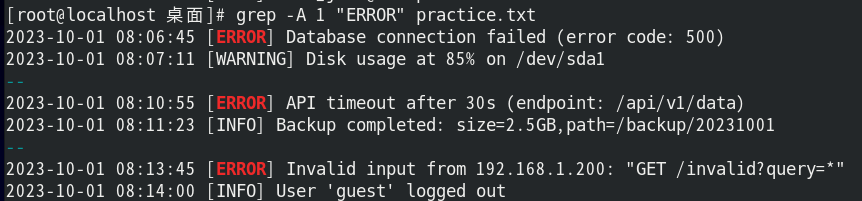
显示匹配行及后 NUM 行(grep -A 3 "error" file) |
-B NUM |
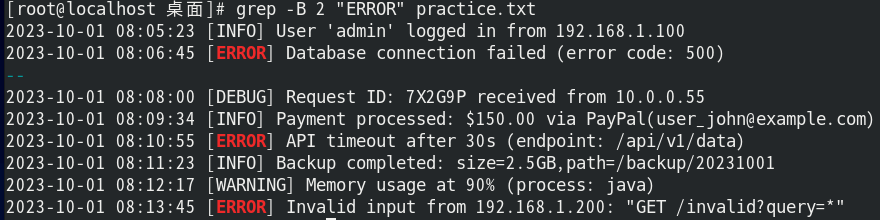
显示匹配行及前 NUM 行(grep -B 2 "crash" file) |
-C NUM |
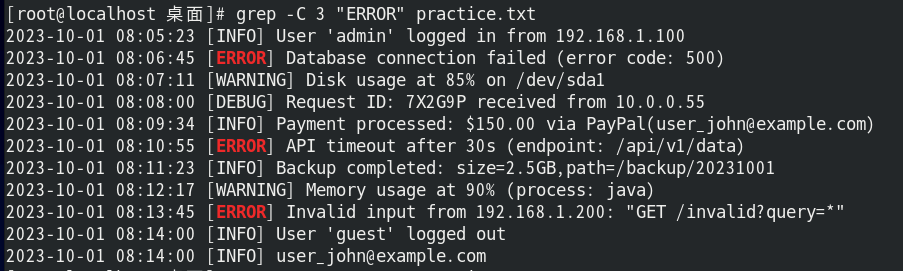
显示匹配行前后各 NUM 行(grep -C 1 "timeout" file) |
-E |
使用扩展正则表达式(等价于 egrep) |
-F |
禁用正则,按字面字符串匹配(等价于 fgrep) |
二、正则表达式核心语法
1. 基础匹配
| 表达式 |
功能 |
示例 |
. |
匹配任意单个字符(除换行符) |
gr.y → “gray”、”grey” |
* |
前一个字符出现 0 次或多次 |
go*gle → “ggle”、”gogle”、”google” |
+ |
前一个字符出现 1 次或多次(需 -E) |
go+gle → “gogle”、”google”(不匹配”ggle”) |
? |
前一个字符出现 0 次或 1 次(需 -E) |
colou?r → “color”、”colour” |
{n} |
前一个字符精确匹配 n 次(需 -E) |
[0-9]{4} → 匹配 4 位数字(如 “2023”) |
{n,} |
前一个字符至少匹配n次 |
a{3,}→ “aaa”, “aaaa” |
{n,m} |
前一个字符匹配n到m次 |
b{2,4}→ “bb”, “bbb”, “bbbb” |
2. 字符类
| 表达式 |
功能 |
示例 |
[...] |
匹配括号内任意一个字符 |
[aeiou] → 匹配任意元音字母 |
[^...] |
匹配不在括号内的任意字符 |
[^0-9] → 匹配非数字字符 |
[a-z] |
匹配小写字母范围 |
[a-f] → 匹配 a 到 f 的字母 |
\d |
匹配数字(等效 [0-9],需 -P) |
grep -P "\d" file |
\w |
匹配单词字符(字母、数字、下划线) |
\w+ → 匹配一个单词 |
3. 锚定与边界
| 表达式 |
功能 |
示例 |
^ |
匹配行首 |
^start → 匹配以 “start” 开头的行 |
$ |
匹配行尾 |
end$ → 匹配以 “end” 结尾的行 |
\b |
匹配单词边界(需 -E/-P) |
\bword\b → 精确匹配单词 “word” |
4. 分组与逻辑
| 表达式 |
功能 |
示例 |
(...) |
分组(捕获子模式) |
(abc)+ → “abc”、”abcabc” |
| ` |
` |
或逻辑(需 -E) |
(?:...) |
非捕获分组(需 -P) |
`(?:http |
5. 转义特殊字符
如$、*需要使用\转义
用 \ 转义特殊字符:\.、\*、\+、\?、\(\)、\{ \}、\[ \] 等。
grep -E "\b([0-9]{1,3}\.){3}[0-9]{1,3}\b" file
|
grep -E "[0-9]{4}-[0-9]{2}-[0-9]{2}" data.txt
|
grep -E -o "\b[A-Za-z0-9._%+-]+@[A-Za-z0-9.-]+\.[A-Za-z]{2,}\b" contacts.txt
|
6.扩展正则表达式
| 表达式 |
功能 |
等价写法 |
\d |
数字 |
[0-9] |
\D |
非数字 |
[^0-9] |
\s |
空白字符 |
[ \t\n\r] |
\S |
非空白字符 |
[^ \t\n\r] |
\w |
单词字符 |
[a-zA-Z0-9_] |
\W |
非单词字符 |
[^a-zA-Z0-9_] |
grep命令练习
实验文件准备
创建practice.txt文件保存以下内容以供命令练习
2023-10-01 08:05:23 [INFO] User 'admin' logged in from 192.168.1.100
2023-10-01 08:06:45 [ERROR] Database connection failed (error code: 500)
2023-10-01 08:07:11 [WARNING] Disk usage at 85% on /dev/sda1
2023-10-01 08:08:00 [DEBUG] Request ID: 7X2G9P received from 10.0.0.55
2023-10-01 08:09:34 [INFO] Payment processed: $150.00 via PayPal(user_john@example.com)
2023-10-01 08:10:55 [ERROR] API timeout after 30s (endpoint: /api/v1/data)
2023-10-01 08:11:23 [INFO] Backup completed: size=2.5GB,path=/backup/20231001
2023-10-01 08:12:17 [WARNING] Memory usage at 90% (process: java)
2023-10-01 08:13:45 [ERROR] Invalid input from 192.168.1.200: "GET /invalid?query=*"
2023-10-01 08:14:00 [INFO] User 'guest' logged out
2023-10-01 08:14:00 [INFO] user_john@example.com
|
命令练习
忽略大小写
grep -i "error" practice.txt
|

显示行号和匹配次数
grep -in "error" practice.txt
|

grep -c "ERROR" practice.txt
|

排除匹配项
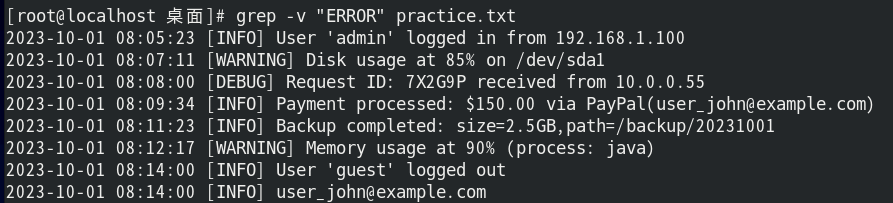
grep -v "ERROR" practice.txt
|
查看上下文
grep -A 1 "ERROR" practice.txt
|
grep -B 2 "ERROR" practice.txt
|
grep -C 3 "ERROR" practice.txt
|
匹配时间范围
grep "^2023-10-01 08:1" practice.txt
|

匹配IP地址
grep -E "\b([0-9]{1,3}\.){3}[0-9]{1,3}\b" practice.txt
grep -Eo "\b([0-9]{1,3}\.){3}[0-9]{1,3}\b" practice.txt
grep -Eo "192\.168(\.[0-9]{1,3}){2}" practice.txt
|

匹配邮箱地址
[root@localhost 桌面]# grep -Eio "\b[A-Za-z0-9.+-%_]+@([A-Za-z0-9-]+\.)+[A-Z]{2,}\b" practice.txt
grep: 不适用的范围结束
[root@localhost 桌面]# grep -Eio "\b[A-Za-z0-9.+-_%]+@([A-Za-z0-9.-]+\.)+[A-Z]{2,}\b" practice.txt
user_john@example.com
user_john@example.com
|

扩展目录递归练习
mkdir -p /tmp/practice/logs/
cp practice.txt /tmp/practice/logs/
echo "ERROR: File not found" > /tmp/practice/error.log
|

grep -r "ERROR" /tmp/practice/
|

grep -r --exclude="*.log" "INFO" /tmp/practice/
grep -r --exclude="*.log" "ERROR" /tmp/practice/
a*.b
*.log
|

常用场景排查
| 场景 |
命令示例 |
| 快速定位错误 |
grep -n “ERROR” file |
| 统计日志关键词频率 |
grep -c “pattern” file |
| 提取结构化数据 |
grep -Eo “正则表达式” file |
| 日志上下文分析 |
grep -C 3 “Exception” file |
find命令
基础语法
find [搜索路径] [匹配条件] [执行动作]
|
- 搜索路径:可指定多个路径(默认当前目录)
- 匹配条件:筛选文件的表达式(支持逻辑组合)
- 执行动作:对匹配文件执行的操作(默认
-print)
常用匹配条件
按路径匹配
| 条件 |
说明 |
示例 |
-name "模式" |
基础文件名匹配(支持通配符) |
find . -name "*.log" |
-iname "模式" |
不区分大小写的文件名匹配 |
find /etc -iname "*.conf" |
-path "模式" |
完整路径匹配(支持通配符) |
find . -path "*temp/*.tmp" |
-regex "模式" |
正则表达式匹配完整路径 |
find . -regex ".*/file[0-9]" |
按文件类型
| 条件 |
文件类型 |
示例 |
-type f |
普通文件 |
find ~ -type f |
-type d |
目录 |
find /var -type d |
-type l |
符号链接 |
find /bin -type l |
-type s |
套接字文件 |
find /tmp -type s |
按时间过滤
| 条件 |
说明 |
示例 |
-mtime -n |
n天内修改的文件 |
find /log -mtime -7 |
-atime +n |
n天前访问过的文件 |
find /backup -atime +30 |
-amin -5 |
5分钟内访问过的文件 |
find /tmp -amin -5 |
-newer file |
比指定文件更新的文件 |
find . -newer reference.txt |
按大小过滤
| 条件 |
说明 |
示例 |
-size +10M |
大于10MB的文件 |
find /var -size +100M |
-size -1G |
小于1GB的文件 |
find ~ -size -500k |
-size 0 |
空文件 |
find . -type f -size 0 |
权限/用户过滤
| 条件 |
说明 |
示例 |
-perm 644 |
精确权限匹配 |
find . -perm 644 |
-perm /u=x |
用户有执行权限 |
find /bin -perm -u=x |
-user root |
属主为root的文件 |
find / -user root |
-group www-data |
属组为www-data的文件 |
find /var -group www-data |
逻辑组合
| 条件 |
说明 |
示例 |
-a / -and |
逻辑与(默认) |
find . -name "*.tmp" -size +1M |
-o / -or |
逻辑或 |
find /var -name "*.log" -o -name "*.bak" |
! / -not |
逻辑非 |
find ~ ! -user root |
\( ... \) |
分组条件(需转义) |
find . \( -name "*.jpg" -o -name "*.png" \) |
与其他命令联动的执行动作
| 动作 |
说明 |
示例 |
-print |
打印完整路径(默认动作) |
find . -name "*.conf" |
-print0 |
用NULL分隔文件名(防空格) |
`find . -print0 |
-ls |
显示详细文件信息 |
find /tmp -size +10M -ls |
-delete |
删除匹配文件 |
find . -name "*.tmp" -delete |
-exec |
执行自定义命令 |
find . -name "*.log" -exec rm {} \; |
-ok |
交互式执行命令(需确认) |
find . -name "*.tmp" -ok rm {} \; |
注意
find [路径] [条件] -exec 命令 {} \;
find [路径] [条件] -exec 命令 {} +
|
find [路径] [条件] -ok 命令 {} \;
find /tmp -mtime +30 -ok rm {} \;
|
{}是一个占位符表示当前匹配到的文件路径。当 find 执行命令时,会自动将 {} 替换为实际文件名(包含完整路径)。
\;表示命令的结束符,分号 ; 在 Shell 中有特殊含义(命令分隔符),所以必须用反斜杠转义为 \;
{} +同样是占位符,但行为不同,会将 所有匹配的文件路径一次性传递给命令相当于把文件列表作为命令的最后一批参数。
与管道| xargs 联动
find . -name "*.txt" -print0 | xargs -0 rm
find /data -type f | parallel -j 4 gzip
|
xargs命令
**xargs**命令是 从标准输入构建并执行命令行 的工具,常与 find 等命令结合使用。
command_generating_output | xargs [选项] target_command
|
| 选项 |
说明 |
示例 |
-n |
每次执行使用的参数数量 |
xargs -n 3 rm(每次删3个) |
-I |
自定义参数占位符 |
xargs -I {} cp {} /backup |
-t |
先打印要执行的命令 |
xargs -t rm(显示再删除) |
-p |
交互式确认 |
xargs -p rm(删除前确认) |
-0 |
处理 NULL 分隔的输入(防空格) |
`find -print0 |
组合案例
清理旧日志
find /var/log -name "*.log" -mtime +30 -delete
|
查找大文件并排序
find / -type f -size +100M -exec du -sh {} + | sort -rh
|
批量修改扩展名
find . -name "*.jpeg" -exec bash -c 'mv "$0" "${0%.jpeg}.jpg"' {} \;
|
查找含关键字的文件
find src/ -type f -exec grep -l "TODO" {} +
|
备份配置文件
find /etc -name "*.conf" -exec cp --parents -t /backup {} +
|
场景示例
| 场景 |
示例命令 |
| 批量重命名 |
find . -name "*.jpg" -exec mv {} /images \; |
| 查找并压缩文件 |
find ~ -size +5M -exec gzip {} \; |
| 修改权限 |
find /var/www -type d -exec chmod 755 {} \; |
| 查找并统计行数 |
find src/ -name "*.py" -exec wc -l {} + |
| 查找并复制(高效版) |
find . -name "*.log" -exec cp -t /backup {} + |
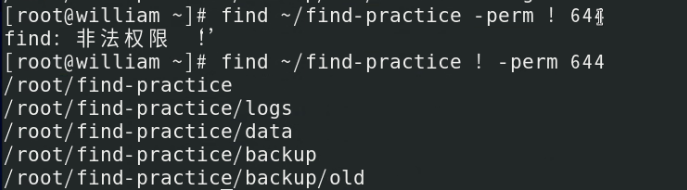
会过滤没有权限访问的文件
find命令练习
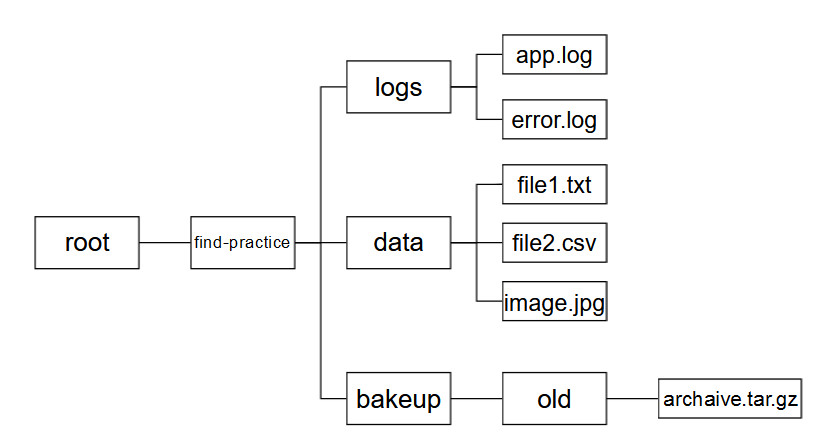
实验文件准备
创建目录以及文件做实验准备
mkdir -p ~/find_practice/{logs,data,backup}
touch ~/find_practice/logs/{app.log,error.log}
touch ~/find_practice/data/{file1.txt,file2.csv,image.jpg}
mkdir ~/find_practice/bakeup/old
touch ~/find_practice/bakeup/old/archive.tar.gz
|
命令练习
按名称搜索文件
find ~/find_practice/ -name "*.log"
|

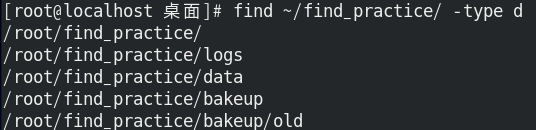
按目录搜索文件
find ~/find_practice/ -type d
|
找到特定名称和特定大小的文件
find ~/find_practice/ -name "*.jpg" -size 0
find ~/find_practice/ -name "*.jpg" -size +10k
|

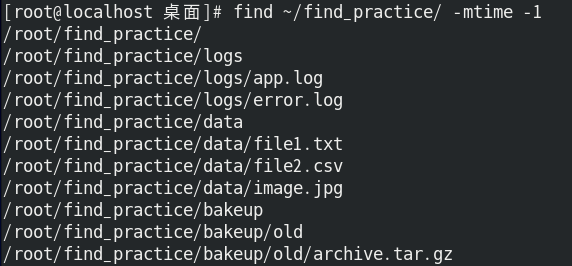
查找最近修改过的文件
find ~/find_practice/ -mtime -1
find ~/find_practice/ -mtime -7
find ~/find_practice/ -mtime +10
|
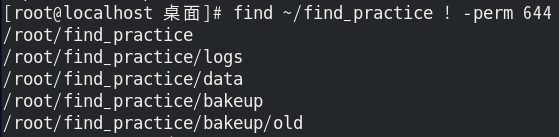
排除特定权限的文件
-perm不支持内嵌逻辑运算符,所以不能写成-perm ! 644
| 语法 |
含义 |
示例 |
-perm 644 |
精确匹配权限等于644 |
644 匹配,755 不匹配 |
-perm -644 |
包含匹配(权限包含644所有位) |
644/755 匹配,640 不匹配 |
-perm /644 |
任一匹配(权限包含644任意位) |
644/755/640 都匹配 |
find ~/find_practice/ ! -perm 644
|
删除文件
find ~/find_practice/data/ -size 0 -delete
|

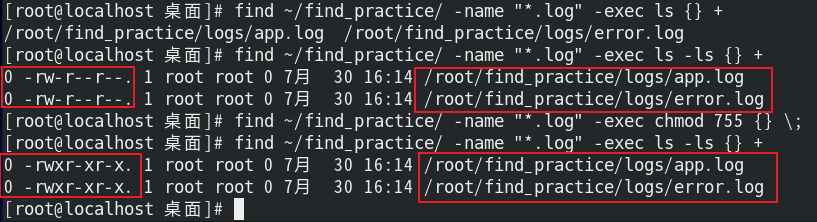
批量修改权限
find ~/find_practice/ -name "*.log" -exec chmod 755 {} \;
find ~/find_practice/ -name "*.log" -exec ls -ls {} +
|
搜索并压缩文件
find ~/find_practice/ -name "*.jpg" -exec tar -czvf jpg.tar.gz {} +
|

忽略特定目录
find ~/find_practice/ -path "*/bakeup" -prune -o -name "*.txt" -print
|

注意点
有-o时
find ~/find_practice/ [ -path "*/backup" -prune ] OR [ -name "*.txt" -print ]
|
- 处理目录时:
- 遇到
*/backup 目录 → -prune 执行 → 返回 true → 跳过该目录
- OR 左侧为真 → 右侧不再执行 → 不输出目录名
- 处理文件/其他目录时:
- 不是
*/backup → 左侧返回 false
- 执行右侧:如果是
*.txt 文件 → -print 执行 → 输出文件名
- 结果:
- 跳过所有
backup 目录
- 输出所有非
backup 目录中的 .txt 文件
没有-o时
find ~/find_practice/ [ -path "*/backup" AND -prune AND -name "*.txt" ] THEN -print
|
- 处理
backup 目录时:
-path "*/backup" 匹配 → 真-prune 执行 → 真-name "*.txt" → 目录名是否匹配 *.txt(通常不匹配)- 条件失败 → 不执行
-print
- 处理其他文件/目录时:
-path "*/backup" 不匹配 → 整个条件立即失败- 既不执行
-prune 也不执行 -print
- 结果:
- 跳过
backup 目录(因为 -prune 执行)
- 不输出任何文件(因为其他文件不满足
-path "*/backup")
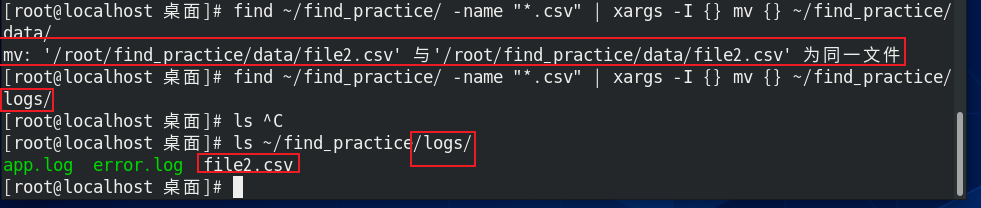
结合xargs处理文件
find ~/find_practice/ -name "*.csv" | xargs -I {} mv {} ~/find_practice/logs/
|
场景使用
| 场景 |
命令示例 |
| 清理临时文件 |
find /tmp -type f -mtime +7 -delete |
| 查找大文件 |
find / -size +100M -exec ls -lh {} ; |
| 批量重命名 |
find . -name “*.old” -exec mv {} {}_new ; |
| 按内容搜索 |
find . -type f -exec grep “pattern” {} ; |